
In the fast-paced custom apparel and textile‐printing industry, the difference between ordinary and outstanding print quality often comes down to one critical piece of software: the Raster Image Processor (RIP) software. Whether you're running a thriving shop or just beginning your journey with DTF printing, understanding RIP software is essential to achieving color accuracy, consistent output, and a well-oiled print workflow.
Simply put, RIP software is the translation engine between your design files—such as PNG, PSD, or AI—and your DTF printer. It converts graphic files into the language the machine can understand: where to place each dot, how much white ink to deploy, and how layers should be managed.
Without RIP software, your DTF printer is essentially flying blind.
DTF (Direct-to-Film) relies on a specific process: you lay down a white ink base, apply full-color inks on top, then transfer to fabric. That workflow introduces unique demands:
Skipping or under-investing in RIP software can lead to mis‐colored prints, wasted ink and film, and frustrated customers. On the flip side, a strong RIP solution elevates your output from “good enough” to professional standard.
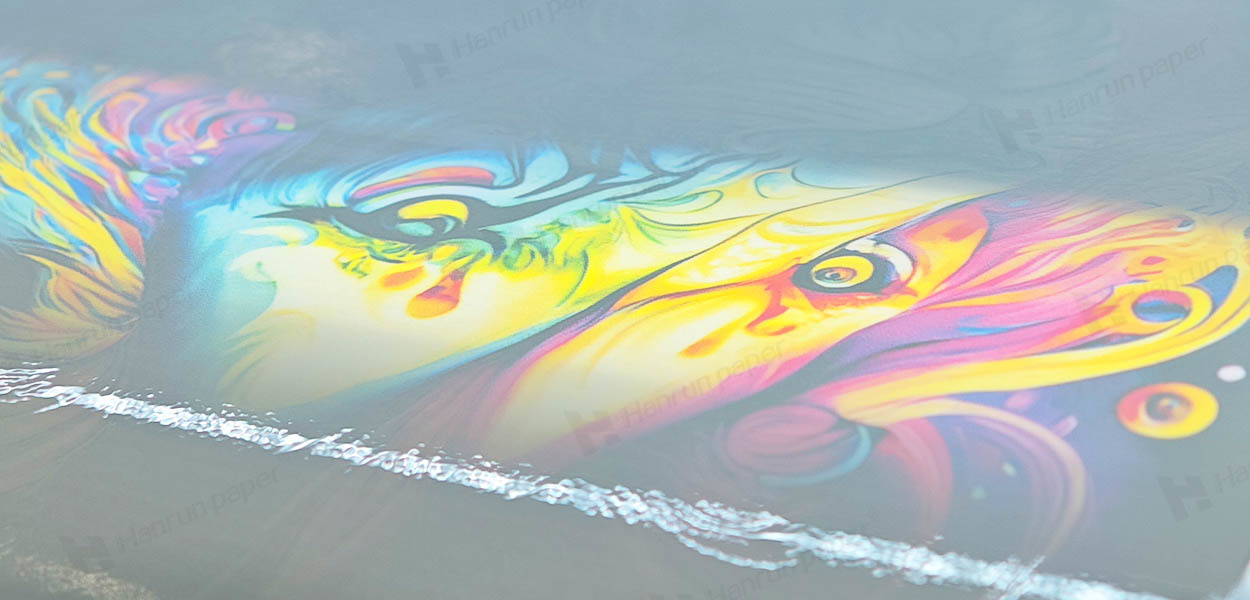
When selecting RIP software for your DTF printer, keep an eye out for these must-have capabilities:
RIP software allows you to adjust how white ink is laid down—its density, coverage area, and interaction with the color layers above. For dark garments especially, getting this right is crucial.
From monitor to print to fabric, the goal is that your graphic stays true to brand colors and design intent. With built-in ICC colour management, the RIP ensures what you see is what you'll get.
Efficient use of film or substrate matters. A good RIP offers automatic layout optimization and gang-sheet features so you waste less material.
As demand grows, so does complexity. RIP software enables you to manage jobs, reorder priorities, duplicate queues for repeat work, and monitor ink usage metrics.
Before spending ink and film, you can preview the RIP output—including underbase, colour separation, and halftone distribution—to catch issues earlier.
If you have more than one DTF printer in your facility, look for RIP software that lets you manage multiple ports or devices from one hub.
Advanced RIPs enable batch processing, custom actions (e.g., add cut lines, apply serial numbering, prepare variable data), and file archiving, freeing up your team for more creative work.
To appreciate why RIP software is so important, it helps to understand its role in the workflow:
Step 1: Choose the Right Software
Check compatibility with your printer, operating system (Windows, macOS), and whether you'll benefit from advanced features (white ink control, multi-printer support, automation).
Also consider your budget: entry-level RIPs may cost a few hundred dollars, while full-featured solutions run higher.
Step 2: Install & Configure
Step 3: Create a Test Print
Run a small sample print to verify colour, underbase behaviour, and film alignment. Use a spectrophotometer if you have one to validate the colour match.
Step 4: Save Presets
Once you find settings that deliver consistent quality, save them as presets—this reduces setup time and variability for repeat orders.
Step 5: Monitor & Optimise
| Problem | Cause | Solution |
| Colour doesn't match screen | Incorrect ICC profile or monitor calibration | Reload correct profile, calibrate monitor/output chain |
| White base is too heavy/light | Underbase settings mis-configured | Adjust opacity and coverage of white layer |
| Banding or stripes in gradients | Halftone / DPI setup or printhead alignment | Increase DPI, adjust halftone pattern, clean printhead |
| Ink wastage / slow drying | Excessive ink coverage | Use “ink-save” mode, optimize nesting/layout |
| Jobs piling up or mis-ordered | Workflow not organized | Use queue management features in RIP, set job priorities |
| Software crash / hangs | Low computer specs or very high-res files | Simplify file resolution, upgrade PC RAM/SSD |
Hanrun Paper DTF printing solutions offer CADlink, FlexiPrint and Maintop 3 options. While all deliver essential RIP functionality, there are nuanced differences that may sway your decision.
1. CADlink
Designed for high-fidelity colour and large-format workflow, CADlink's Digital Factory features extensive automation tools, white-ink management, and broad printer compatibility.
Ideal for shops running multiple DTF machines or requiring advanced nest/layout features and multi-printer queue management.
2. FlexiPrint
FlexiPrint offers a flexible and user-friendly interface, with strong white-ink support, DTF-specific modules and training resources.
This makes it a good pick for mid-sized operations looking for a balance of power and ease-of-use.
3. MainTop
Often bundled with entry-level DTF machines, MainTop provides the basics of RIP functionality — white-ink underbase control, output sizing, and job queueing.
It may lack the advanced automation of higher-end packages, but it still serves as a cost-effective entry point for new DTF users.
If you view your DTF printer as the heavy-lifting engine, then RIP software is the brain directing every print job. It determines whether your design comes out sharp and vibrant—or dull and mis-aligned.
By choosing and mastering the right RIP software, you secure consistent colour accuracy, tighter workflow control, reduced waste, and greater return on your DTF investment.
Whether you opt for CADlink, FlexiPrint, MainTop—or another RIP package—make sure it aligns with your printer model, production volume, and long-term growth goals. Because when your software works seamlessly, your prints do too.
Ready to take your DTF output to the next level? Choose your RIP, calibrate your workflow, and watch your brand colors pop — every time.

